Agent Messenger gives every project a contact in a buddy list. Double‑click one and you're in a real
Claude Code, Codex, Gemini or OpenCode session: the same agent, tools and login as your terminal.
Try the live demo in your browser.The app's real interface, playing itself. Click anything in it to take over.The app's real interface, and it is yours: double-click a contact and say anything.
Replies in the demo are scripted. The app talks to the real agents.
Open it full screen
What it is
Real coding agents, in a buddy list
It is not a chatbot skin. Every contact is a real agent that can read your project, run commands and edit
files. You see all of it as a classic messenger.
Four agents, one list
Pick Claude Code, Codex, Gemini or OpenCode when you add a contact. Claude Code is built in. The
others run the CLI on your Mac, with the same login, settings and MCP servers.
Claude CodeBuilt in
CodexYour codex CLI
GeminiYour gemini CLI
OpenCodeYour opencode CLI
The contact list
A contact for every project
Add a project folder and it shows up as a buddy. Double-click it to open a conversation there. The
list starts out grouped by project, and its ... menu groups it by status, service or your own
groups, filters it to one project and sorts it. Favorites stay on top, and archived contacts fold
away.
Status at a glance
Online means ready. Busy shows what the agent is working on. Away means it is waiting for you to
approve something.
Pull requests in sight
A contact whose branch has a pull request wears tags at the end of its row: Merged, Conflict, 2
failing, Running or Passed. A toast tells you when checks start failing or have all passed, and a
line under your picture counts the pull requests waiting for your review.
Agent Messenger
FileContactsActionsToolsHelp
You(Online) ▾shipping like it's 2005
You have (3) pull requests to review
Find a contact or a conversation...
▾api (2)
Claude (api)ConflictPassed
Codex (api)- ~/projects/apiRunningPassed
▾website (1)
Claude (website)Merged
▾msn-messenger (1)
Claude (msn-messenger)Running2 failing
▾Offline (1)
Claude (old-blog)- ~/archive/old-blog
Agent Messenger✕
Codex (api) Checks passed on pull request #131.
A conversation
Invitations, not prompts
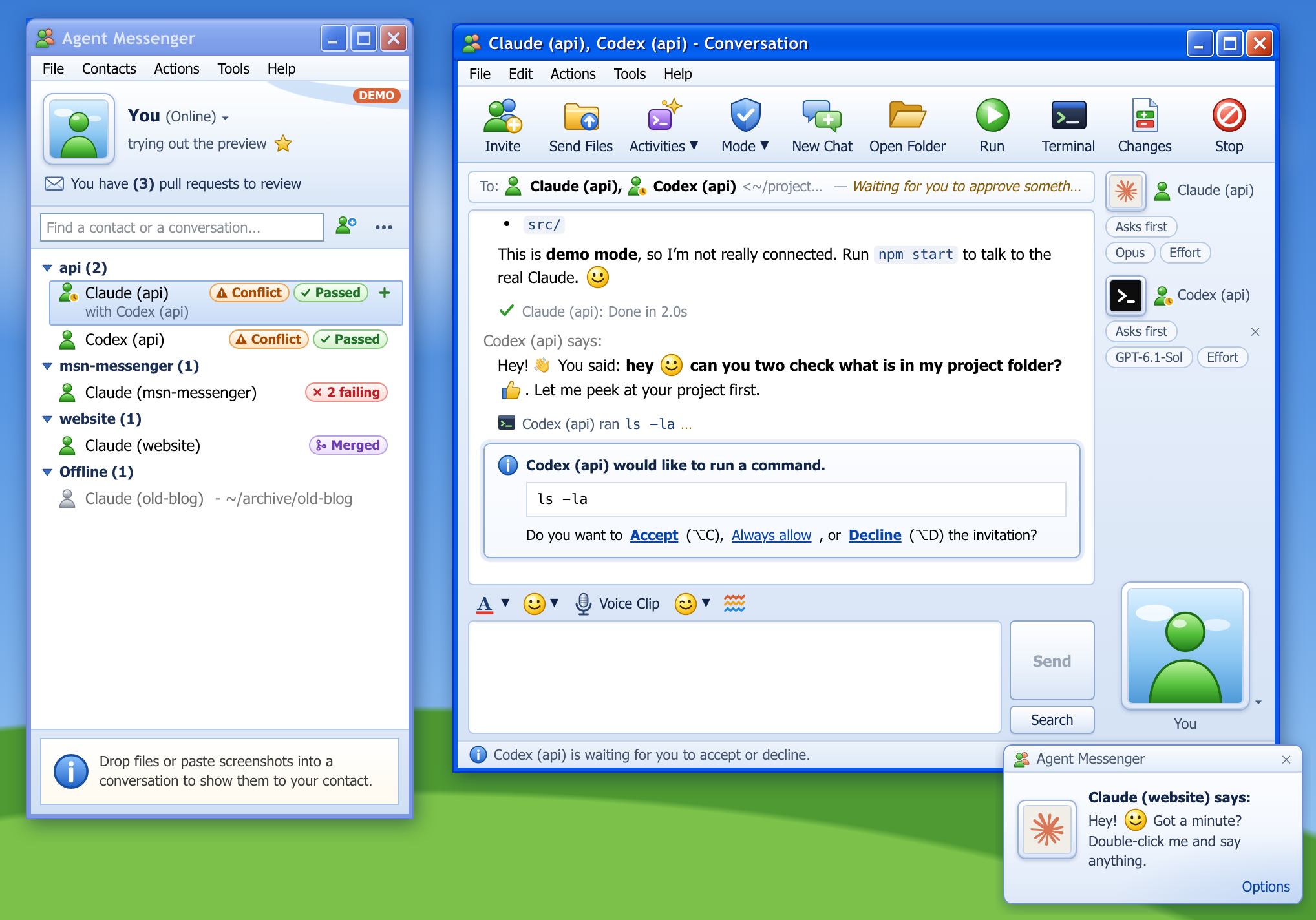
When an agent wants to run a command or edit a file, you get an invitation: Accept, Always allow or
Decline. Each tool call appears as a line in the conversation, with its output or its changes one
click away. Questions come one at a time, like slides: pick an answer and the next one is up.
Nudge to interrupt
A nudge shakes the window and stops the agent. When an agent needs you, it nudges you back.
The whole toolbox
Permission modes, slash commands that complete as you type, output styles, file attachments and
pasted screenshots.
Claude (api) - Conversation
FileEditActionsToolsHelp
InviteSend FilesActivitiesModeTerminalChangesStop
To: Claude (api)<~/projects/api>
You say:
the rate limit test is flaky. can you fix it?
Claude (api) says:
On it! Let me run the tests first.
Claude (api) ran npm testShow output
Claude (api) would like to edit a file.
src/retry.js
Do you want to Accept (⌥C), Always allow, or
Decline (⌥D) the invitation?
You accepted.
Claude (api) edited src/retry.jsShow changes
Claude (api) says:
Fixed The retry now waits as long as the server's Retry-After
says. All 42 tests pass.
Claude (api): Done in 12.4s
Voice Clip
Send
Group conversations
Two agents, one conversation
Invite another contact into a conversation, whichever service it runs on, or make a new one right
there. They work in the same folder and answer in turn, and one hands over to the other with an
@mention.
They pick their own effort
Give the goal and let the agents decide how hard each of them should think. An effort check comes
first: one agent names a level for everyone about to answer, and says why.
A branch for every agent
Every contact in a git repository works in its own worktree and branch, so your folder stays as it
is and two agents never change each other's files. Click the + on a contact for another agent on
the project.
Claude (api), Codex (api) - Conversation
To: Claude (api),Codex (api)
You say:
refactor the retry helper, then have Codex review it
Claude (api) says:
@Claude(high)@Codex(low) The refactor needs
care, the review is small.
Claude (api) edited src/retry.jsShow changes
Claude (api) says:
Done: it backs off with jitter now. @Codex over to you.
Codex (api) says:
Looks good One thing: cap the delay at 30 seconds.
Claude (api)Asks first
OpusEffort
Codex (api)Asks first
GPT-6.1-SolEffort
Beside the conversation
The plan, your shell and the diff, one tab away
A pane opens beside the conversation and the window grows to make room for it. Each plan, terminal and
list of changes gets a tab of its own.
Plans beside the chat
In Claude's plan mode, the plan opens in a pane beside the conversation, with a tab for each plan.
Approve it there, or say what should change.
Your own terminal
Press ⌘J for your shell in the contact's folder, beside the conversation. It is a real
terminal with tabs you can add, name and reorder, and its shells keep running when you put it away.
Ask Claude for terminals
Say "a terminal for the tests, running npm test" and Claude opens it beside the conversation, with
that name on its tab and the command typed in. It asks first when a command is to run.
See what changed
Changes in the toolbar opens a tab that lists every file the folder has not committed yet, with the
lines it gained and lost. Click one for its diff. It looks again when a turn ends.
Claude (api) - Conversation
You say:
make a plan for a dark theme
Claude (api) says:
Let me think this through before touching anything.
Claude (api) made a plan. View plan
You say:
open a terminal for the tests, running npm test
Claude (api) opened a terminal: tests, to run npm test
+
Add a dark theme
Add color tokens for dark mode
Switch them with prefers-color-scheme
Check contrast on every screen
Would you like to proceed?Yes, auto-accept editsYes, ask before editsNo, keep planning
Add a contact from a GitHub issue or pull request, by number or link. An issue names the contact and
its branch, and a pull request checks out its own. The title and text wait in the message box as a
draft.
Add a project your way
Open a folder on your Mac, clone a repository from GitHub by its address or from a list of your own,
or start a new project with a git repository and a first commit. Each ends in Add a Contact with the
folder filled in.
Open project...Open GitHub project...Quick start...
Run your project
Run starts the project's own command, such as a dev server, in the contact's folder. Every contact
gets a port of its own, so two agents on one project can each run theirs at once.
The model for the job
Badges under the conversation show a contact's model and effort level. Click one to switch, or search
the service's own list for another model. In a group conversation every agent has its own.
Asks firstOpusHighSonnetGPT-6.1-SolMax
In your menu bar
A menu-bar icon lists every contact with its status and counts what is unread. Control+Option+M brings
the contact list to the front from any app.
Busy means busy
Set yourself to Busy and the toasts, sounds and nudges stop. Back Online, anyone still waiting for an
answer asks again. Five idle minutes show you as Away.
Voice clips
Hold F2 and say your message. It is turned into text on your Mac by whisper.cpp and typed into the
message box, so you can fix it before you send it. Or have it sent as soon as you stop talking.
Picks up where you left off
Conversations resume when you reopen the app. A toast and a dock bounce tell you when an agent replies
in the background.
Message history
A new chat archives the old one. View message history lists a contact's past conversations, searches
them and saves any of them as Markdown.
Search every conversation
The contact list's search box also looks through every conversation, past ones included. Open a match
and its message history comes up with the search filled in.
Sounds on
The original MSN Messenger sounds: the chime when a message arrives, the nudge and the sign-in jingle.
The Tools menu turns them off.
Make it yours
Reply with emoticons in your own font color, or send one of 15 classic winks that play over the
conversation with sound. Add your own emoticons, winks and display pictures too.
Terminal to messenger
Same agents, different window
Everything you do in a terminal has a place here. Usually a nicer one.
Terminal to Messenger
In the terminal
In Agent Messenger
claude, codex, gemini or opencode in a project
folder
Add a contact for the folder, pick its Service, then double-click it
A terminal tab for every project
One contact list, grouped by project, status, service or your own groups
Flipping through tabs to see who has finished
A menu-bar icon with every contact's status and an unread count
git worktree add, then one more terminal tab
Every contact gets its own worktree and branch; the + on one adds another agent on the project
Pasting one agent's answer into another's terminal
Invite it into the conversation: they answer in turn and hand over with an @mention
Permission prompt
An invitation: Accept, Always allow or Decline
Esc to interrupt
Nudge: shakes the window and stops the agent
git status and git diff HEAD
The Changes tab beside the conversation: the files that changed, each with its diff
One more tab for your own shell
Terminal beside the conversation, in the contact's folder: ⌘J, with tabs you can name
Opening three more tabs and typing the same command into each
"Open three terminals running the tests": Claude opens them, with the command typed in
gh pr checks, again and again
Tags on the contact's row, such as Passed or 2 failing, and a toast when they change
gh repo clone or git init, then cd
Add project: open a folder, clone from GitHub or start a new one
gh issue view, then pasting the issue into a prompt
Add a contact from the issue or pull request: its text waits in the message box as a draft
gh pr view and counting what an agent cost
Rest the mouse on a contact: its branch, pull request, changes and today's cost
npm run dev in one more tab, on a port you pick by hand
Run in the toolbar: the project's own command, on a port of its own for each contact
The agent's streamed reply
"Claude says:" or "Codex says:", with Markdown and emoticons, and
"Gemini is typing a message..."
Tool calls: commands, edits, file reads and searches
Lines like "OpenCode ran npm test", with Show output and Show changes links
A terminal bell when an agent needs you
A toast, a dock bounce and a nudge, with sound
Do Not Disturb
Your own status: Busy keeps it quiet until you are back Online
Permission modes, approval policies and sandboxes
The Mode menu, with each agent's own modes, such as Ask before acting, Plan mode and Never ask
Reading a plan in the scrollback before you approve it
The plan opens in a pane beside the conversation, with a tab for each one
/model and /effort
The model and effort badges under the conversation: click one, or let the agents decide
/compact, /review and other slash commands
The Activities menu lists every command your agent has. Or type / and they complete as
you type
/output-style in Claude Code
Tools > Output style, for that contact only
Typing every message
Hold F2 and say it: a voice clip, turned into text on your Mac, and sent at once if you like
Resuming a session, such as claude --resume
Conversations pick up where they left off
/clear, and the old session is out of sight
New Chat archives the conversation, and View message history finds it again
grep through old session transcripts
The contact list's search box looks through every contact's conversations
Open the downloaded .dmg and drag Agent Messenger to Applications.
Open it for the first time
This release isn't notarized by Apple yet. Try opening Agent Messenger from Applications, then go to
System Settings > Privacy & Security > Open Anyway and confirm.
Apple's first-launch guide explains the prompt.
Add your first contact
Pick a project folder and a service, then say hello. Each agent uses the login it already has on
your Mac. Claude Code is built in and uses your Claude Code login, or an
ANTHROPIC_API_KEY. For Codex, Gemini and OpenCode, install that CLI and sign in to it
once.
< BackNext >Cancel
Good to know
Questions
No question matches that. Try another word.
What is Agent Messenger?
Agent Messenger is a Mac app for chatting with the Claude Code, Codex, Gemini and OpenCode coding agents
through an interface styled after MSN Messenger 7.5. Every project folder is a contact in a buddy list,
and every conversation is a real agent session that can read the project, run commands and edit files.
No. Each conversation runs a real Claude Code, Codex, Gemini or OpenCode session, with the same agent
loop, tools and settings as claude, codex, gemini or
opencode in your terminal. It can read your project, run commands and edit files.
Do I need to install the agents myself?
Not Claude Code: it comes with the app. Codex, Gemini and OpenCode are not bundled, so install the ones
you want. Each agent signs in the way it does in your terminal. For Claude Code that is a Claude Code
login on this Mac, or an Anthropic API key.
How do I chat with Codex?
Choose Codex as the Service in Add a Contact. Codex is not bundled, so install the
Codex CLI first with npm install -g @openai/codex and run codex login. It uses
the same login, config.toml, AGENTS.md and MCP servers as codex in
your terminal. Codex contacts have their own Mode menu, and Activities has /compact,
/review and your Codex skills. They have no plan approval.
How do I chat with Gemini or OpenCode?
Choose Gemini or OpenCode as the Service in Add a Contact. Neither is bundled.
For Gemini, install Gemini CLI 0.33 or newer with npm install -g @google/gemini-cli and run
gemini once to sign in. For OpenCode, run npm install -g opencode-ai and
opencode auth login. Both use the same settings, commands and MCP servers as in your
terminal, and each has its own Mode menu.
Can two agents work on the same project together?
Yes. Click Invite in a conversation and pick another contact, whichever service it uses, or click
the + there to make a new one with its service and model. Everyone in the conversation works in its
folder and answers in turn, each seeing what was said before. Type @ and a name to ask only
one of them. An agent can hand over to another the same way, for up to six turns per message. Each agent
has its own mode, model and effort level, and what any of them asks for arrives as an invitation that says
who is asking.
Can two agents work on one repository without undoing each other's work?
Yes. Every contact you add in a git repository works in its own git worktree in
~/.agent-messenger/worktrees/, on a new branch, so the folder you picked is never touched.
For another agent on the same project, point at a contact and click the + at the end of its row, or
right-click it and choose New contact in this project. The branch is already named: press Enter, or
type a name of your own. The new contact keeps the service, model and mode of the first. Files git doesn't
track, such as node_modules and .env, are not copied. Deleting the contact can
remove its worktree too, and the branch and its commits always stay. In a folder that is not a git
repository, contacts work in the folder itself.
Is there a terminal in the app?
Yes. Terminal in a conversation's toolbar, or ⌘J, opens your own shell in that contact's
folder, beside the conversation. It is a real terminal, so vim, htop, colours
and Ctrl+C work as they do in Terminal. The + after the tabs opens another one, each in a tab you
can rename and drag into another order. Putting the terminal away keeps its shells running, and closing
the window closes nothing: a terminal belongs to its contact. The agent doesn't see what you type or what
is printed.
Can an agent open terminals for me?
A Claude contact can. Say "open three terminals", or "a terminal for the dev server and one for the
tests", and each gets a tab beside the conversation, with the name you gave it. Ask for "two terminals
running claude" and the command is typed into each one once its shell is up. You are asked first when a
command is to run, and shown the command. It is typed once: the agent can't type into a terminal
afterwards, and isn't told what the command prints. Codex, Gemini and OpenCode can't do this yet.
Can I see what an agent changed?
Yes. Every edit in the conversation has a Show changes link. For everything at once, open the
Changes tab beside the conversation with Changes in the toolbar or ⇧⌘G. It has a
row for every file the folder has not committed yet, with the lines it gained and lost, and a click shows
a file's diff as git diff HEAD prints it. It looks again when a turn ends. The tab only
reads: it never stages, commits or undoes anything.
How do I add a project that is on GitHub?
Choose Add project in the contact list's ... menu. Open GitHub project... clones a
repository: type its address or owner/name, or pick one of your own from a list.
Open project... picks a folder that is already on your Mac, and Quick start... starts a new
project with a git repository and a first commit, and a private repository on GitHub if you leave that box
ticked. Each ends in Add a Contact with the folder filled in. Listing and making repositories needs
the GitHub CLI; cloning by address works without it.
Can I start an agent on a GitHub issue or pull request?
Yes. Add a Contact has a GitHub issue or pull request field: type a number or paste a link.
An issue names the contact after its title, and the branch after its number and title. A pull request
checks out its own branch, also from a fork, so what the contact pushes goes to the pull request. The
title, text and link wait in the message box as a draft, and nothing is sent until you press Enter. It
needs the GitHub CLI, and the app only reads from GitHub.
Can I run my dev server from a conversation?
Yes. Run in a conversation's toolbar starts your project's own command in that contact's folder.
The first time it asks for the command and suggests one, such as the dev script of your
package.json. Each contact gets a port of its own in PORT, so several contacts
on one project can each run a dev server at once. The conversation shows what was started, a link to
localhost and the output. The agent is not told, and Stop Run stops everything the
command started.
Can I choose which model an agent uses?
Yes. Pick a model in Add a Contact, or click the model badge under a conversation to switch later.
The list is searchable and takes any model by its exact name, and Add models... chooses which ones
it offers. Claude Code and Codex are asked for their own lists, so new models show up by themselves. The
effort badge next to it sets how hard the model thinks, for the models that take a level. Both are
remembered for the contact, and nothing is written to your Claude Code or Codex settings.
Default leaves the model to your own settings for that service.
Can the agents decide how hard to think?
Yes. Tick Let Claude decide at the bottom of a contact's effort menu and it picks its own level for
every message you send. First it replies with a level and a few words on why, then it answers on that
level. In a group conversation, Tools > Effort > Let the agents decide works the same way:
before anyone answers, one agent names a level for everyone about to answer, such as
@Claude(high) @Codex(low). A level you choose yourself holds until the agents pick again.
Gemini and OpenCode have no effort levels.
What happens when an agent makes a plan?
In plan mode, Claude writes a plan and waits for your answer before it changes anything. The plan opens in
a pane beside the conversation, and the window grows to make room for it. Each plan has a tab: approve it,
or choose No, keep planning and say what should change. The conversation keeps a
View plan link, and File > View a plan lists every plan and how you answered it. Codex,
Gemini and OpenCode have no plans to approve.
Can an agent change my files without asking?
Not unless you let it. Claude, Codex and Gemini ask first by default, and every command or edit arrives as
an invitation. The Mode menu can loosen that. Never ask lets the agent run anything, so only use it
in folders you don't mind breaking. OpenCode is the exception: its Build mode changes files and runs
commands without asking, unless your opencode.json says otherwise.
How do voice clips work?
Hold F2, say your message and let go. What you said is typed into the message box, so you can fix
it before you press Enter. Your voice is turned into text on your Mac by whisper.cpp, and the recording
never leaves it. Neither whisper.cpp nor its model is bundled: run
brew install whisper-cpp and download a model. Tools > Voice clips changes the
shortcut, and can send what you said as soon as you stop talking, without waiting for Enter.
How does it know about my pull requests?
It asks the GitHub CLI. Install gh and run gh auth login once. A contact whose
branch has a pull request then wears tags at the end of its row that say how it stands: Merged,
Conflict, a count such as 2 failing, Running, Passed or Closed. Click
the tags to open the pull request on GitHub. A toast tells you when checks start failing or have all
passed, and the line under your picture counts the pull requests waiting for your review. The app only
reads, and without gh all of it is left out.
Can I stop it from interrupting me?
Yes. Set your own status to Busy or On The Phone and the toasts, sounds, nudges and dock
bounce stop, while the dock icon and the menu bar keep counting. Appear Offline hides the counts
too. Nothing is answered for you: when you go back Online, every contact still waiting asks again.
The app also shows you as Away after five minutes without input.
Where are my conversations stored?
On your Mac. Contacts and chat history live in
~/Library/Application Support/Agent Messenger/, and each agent keeps its own session
transcripts, such as Claude Code's in ~/.claude/.
Can I find an old conversation again?
Yes. Starting a new chat moves the conversation to message history instead of deleting it. Right-click a
contact and choose View message history to browse and search its past conversations, save one as
Markdown or delete it. The newest 50 per contact are kept, on your Mac. To look through every contact at
once, type in the contact list's search box: from two characters on, it also lists the contacts whose
conversations contain your text.
What if I'm done with a project for now?
Archive its contact. Right-click it and choose Archive contact: it stops, its conversation window
closes and it moves to an Archived section that stays folded. Its message history, folder and
worktree are kept. Restore contact brings it back as it was, and its conversation picks up where it
left off. For the contacts you use most, Add to favorites lists them at the top.
Can I use my own emoticons and winks?
Yes. Choose Tools > Open emoticon pack folder, drop pictures into emoticons,
winks or pictures, and restart the app. GIF, PNG, WebP and JPEG files work. Put
an audio file with the same name next to a wink and it plays with sound. The app comes with its own
smileys and 15 classic winks, and a file with the same name replaces the bundled one. Make sure you have
the right to use what you add.
Does it play the original MSN sounds?
Yes. Both the app and this demo play the original MSN Messenger message, nudge and sign-in recordings. The
15 bundled winks also play their original soundtracks.
Does the app send anything about me?
Only anonymous counts, sent to PostHog under a random id: that the app was opened and which of its
features were used, such as a terminal or a group conversation, with the app's version and your version of
macOS. Nothing you or an agent wrote goes along, nor the name of a folder, file, branch or contact. Turn
the counts off with Tools > Share anonymous usage data in the contact list. This page counts its
visits and downloads as well, without cookies.
Is there a Windows or Intel Mac version?
Not yet. The first release is for Macs with Apple Silicon.
Say something
Feedback, bugs and requests
Something broken, or something missing since 2005? Send it from here, or from the app's Help menu.
 Agent Messenger
Download
Agent Messenger
Download
%22%20stroke%3D%22%23a87300%22%20stroke-width%3D%22.8%22%20stroke-linejoin%3D%22round%22%2F%3E%3C%2Fsvg%3E "Thumbs up (Y)") Want me to open a pull request?
Want me to open a pull request?%22%20stroke%3D%22%23b77b00%22%20stroke-width%3D%22.9%22%2F%3E%3Cellipse%20cx%3D%227.6%22%20cy%3D%225.4%22%20rx%3D%223.6%22%20ry%3D%222%22%20fill%3D%22%23fff%22%20opacity%3D%22.55%22%2F%3E%3Cellipse%20cx%3D%227%22%20cy%3D%228%22%20rx%3D%221.05%22%20ry%3D%221.5%22%20fill%3D%22%233b2600%22%2F%3E%3Cellipse%20cx%3D%2213%22%20cy%3D%228%22%20rx%3D%221.05%22%20ry%3D%221.5%22%20fill%3D%22%233b2600%22%2F%3E%3Cpath%20d%3D%22M5.6%2011.6Q10%2016%2014.4%2011.6%22%20stroke%3D%22%233b2600%22%20stroke-width%3D%221.2%22%20fill%3D%22none%22%20stroke-linecap%3D%22round%22%2F%3E%3C%2Fsvg%3E "Smile :)")
%22%20stroke%3D%22%23a87300%22%20stroke-width%3D%22.9%22%20stroke-linejoin%3D%22round%22%2F%3E%3C%2Fsvg%3E "Star (*)")
%22%20stroke%3D%22%23b77b00%22%20stroke-width%3D%22.9%22%2F%3E%3Cellipse%20cx%3D%227.6%22%20cy%3D%225.4%22%20rx%3D%223.6%22%20ry%3D%222%22%20fill%3D%22%23fff%22%20opacity%3D%22.55%22%2F%3E%3Cpath%20d%3D%22M5.6%208.4q1.4-1.3%202.8%200%22%20stroke%3D%22%233b2600%22%20stroke-width%3D%221.2%22%20fill%3D%22none%22%20stroke-linecap%3D%22round%22%2F%3E%3Cellipse%20cx%3D%2213%22%20cy%3D%228%22%20rx%3D%221.05%22%20ry%3D%221.5%22%20fill%3D%22%233b2600%22%2F%3E%3Cpath%20d%3D%22M5.6%2011.6Q10%2016%2014.4%2011.6%22%20stroke%3D%22%233b2600%22%20stroke-width%3D%221.2%22%20fill%3D%22none%22%20stroke-linecap%3D%22round%22%2F%3E%3C%2Fsvg%3E "Wink ;)")
%22%20stroke%3D%22%23b77b00%22%20stroke-width%3D%22.9%22%2F%3E%3Cellipse%20cx%3D%227.6%22%20cy%3D%225.4%22%20rx%3D%223.6%22%20ry%3D%222%22%20fill%3D%22%23fff%22%20opacity%3D%22.55%22%2F%3E%3Cpath%20d%3D%22M3.4%207.2h13.2%22%20stroke%3D%22%23111%22%20stroke-width%3D%221.1%22%2F%3E%3Cpath%20d%3D%22M4%207.2h5.2v1.6a2.4%202.4%200%200%201-4.8%200zM10.8%207.2H16v1.6a2.4%202.4%200%200%201-4.8%200z%22%20fill%3D%22%231a1a1a%22%2F%3E%3Cpath%20d%3D%22M5%207.8h1.6%22%20stroke%3D%22%23fff%22%20stroke-width%3D%22.7%22%20opacity%3D%22.7%22%2F%3E%3Cpath%20d%3D%22M5.6%2011.6Q10%2016%2014.4%2011.6%22%20stroke%3D%22%233b2600%22%20stroke-width%3D%221.2%22%20fill%3D%22none%22%20stroke-linecap%3D%22round%22%2F%3E%3C%2Fsvg%3E "Hot (H)") One thing: cap the delay at 30 seconds.
One thing: cap the delay at 30 seconds.%22%20stroke%3D%22%23b77b00%22%20stroke-width%3D%22.9%22%2F%3E%3Cellipse%20cx%3D%227.6%22%20cy%3D%225.4%22%20rx%3D%223.6%22%20ry%3D%222%22%20fill%3D%22%23fff%22%20opacity%3D%22.55%22%2F%3E%3Cellipse%20cx%3D%227%22%20cy%3D%228%22%20rx%3D%221.05%22%20ry%3D%221.5%22%20fill%3D%22%233b2600%22%2F%3E%3Cellipse%20cx%3D%2213%22%20cy%3D%228%22%20rx%3D%221.05%22%20ry%3D%221.5%22%20fill%3D%22%233b2600%22%2F%3E%3Cpath%20d%3D%22M5%2010.6Q10%2018.6%2015%2010.6Z%22%20fill%3D%22%237a2a00%22%20stroke%3D%22%233b2600%22%20stroke-width%3D%22.8%22%20stroke-linejoin%3D%22round%22%2F%3E%3Cpath%20d%3D%22M5.8%2011.2h8.4l-.6%201.4H6.4z%22%20fill%3D%22%23fff%22%2F%3E%3C%2Fsvg%3E "Open-mouthed :D")
%22%20stroke%3D%22%23b77b00%22%20stroke-width%3D%22.9%22%2F%3E%3Cellipse%20cx%3D%227.6%22%20cy%3D%225.4%22%20rx%3D%223.6%22%20ry%3D%222%22%20fill%3D%22%23fff%22%20opacity%3D%22.55%22%2F%3E%3Cellipse%20cx%3D%227%22%20cy%3D%228%22%20rx%3D%221.05%22%20ry%3D%221.5%22%20fill%3D%22%233b2600%22%2F%3E%3Cellipse%20cx%3D%2213%22%20cy%3D%228%22%20rx%3D%221.05%22%20ry%3D%221.5%22%20fill%3D%22%233b2600%22%2F%3E%3Cpath%20d%3D%22M6%2011.8Q10%2014.6%2014%2011.8%22%20stroke%3D%22%233b2600%22%20stroke-width%3D%221.2%22%20fill%3D%22none%22%20stroke-linecap%3D%22round%22%2F%3E%3Cpath%20d%3D%22M8.6%2013.1h3.4v1.6a1.7%201.7%200%200%201-3.4%200z%22%20fill%3D%22%23ff6f7d%22%20stroke%3D%22%23a3202e%22%20stroke-width%3D%22.6%22%2F%3E%3C%2Fsvg%3E "Tongue out :P")
%22%20stroke%3D%22%23b77b00%22%20stroke-width%3D%22.9%22%2F%3E%3Cellipse%20cx%3D%227.6%22%20cy%3D%225.4%22%20rx%3D%223.6%22%20ry%3D%222%22%20fill%3D%22%23fff%22%20opacity%3D%22.55%22%2F%3E%3Cellipse%20cx%3D%227%22%20cy%3D%227.6%22%20rx%3D%221.4%22%20ry%3D%222%22%20fill%3D%22%233b2600%22%2F%3E%3Cellipse%20cx%3D%2213%22%20cy%3D%227.6%22%20rx%3D%221.4%22%20ry%3D%222%22%20fill%3D%22%233b2600%22%2F%3E%3Cellipse%20cx%3D%2210%22%20cy%3D%2213.4%22%20rx%3D%222.1%22%20ry%3D%222.5%22%20fill%3D%22%237a2a00%22%20stroke%3D%22%233b2600%22%20stroke-width%3D%22.8%22%2F%3E%3C%2Fsvg%3E "Surprised :O")
%22%20stroke%3D%22%237a0610%22%20stroke-width%3D%22.8%22%2F%3E%3Cellipse%20cx%3D%226.4%22%20cy%3D%226.8%22%20rx%3D%222%22%20ry%3D%221.2%22%20fill%3D%22%23fff%22%20opacity%3D%22.6%22%2F%3E%3C%2Fsvg%3E "Red heart (L)")

